

Early Access Beta — Testing Instructions
iOS via TestFlight · Android via Google Play
⚠️ Important: Please test on a new or duplicated choreography
Because this is a beta version, there may still be unexpected bugs or data issues. Please avoid testing on important choreography files directly. Instead, create a new choreography or duplicate an existing one before testing so that your important work stays safe.
What to Test 📝
Use a new or duplicated choreography for each test area. If you notice anything else, include it in the feedback form too.
Offline edits: Make a choreography available offline, edit while offline, reopen it, reconnect, and confirm the changes sync.
Realtime Collaboration & permissions: Invite or use a collaborator, test shared edits, and confirm view/edit permissions behave correctly.
Cloud sync: Confirm changes appear across signed-in devices and still show after closing and reopening the app.
Audio uploads with offline: Upload audio, confirm it remains available offline, then reconnect and verify playback and sync.
Folders & organization: Create, rename, move, and organize folders or items, then confirm the structure syncs correctly.
Recently Deleted / Restore: Delete a test item, restore it, and confirm it returns with the expected content.
iOS testers
iOS prerequisites
Please check that these match up before testing:
iPhone/iPad on supported iOS (iOS16.4 and above)
Apple ID matches sign-up
TestFlight installed
1. Install app via TestFlight ✈️
Step 1: Open the invite link on your device
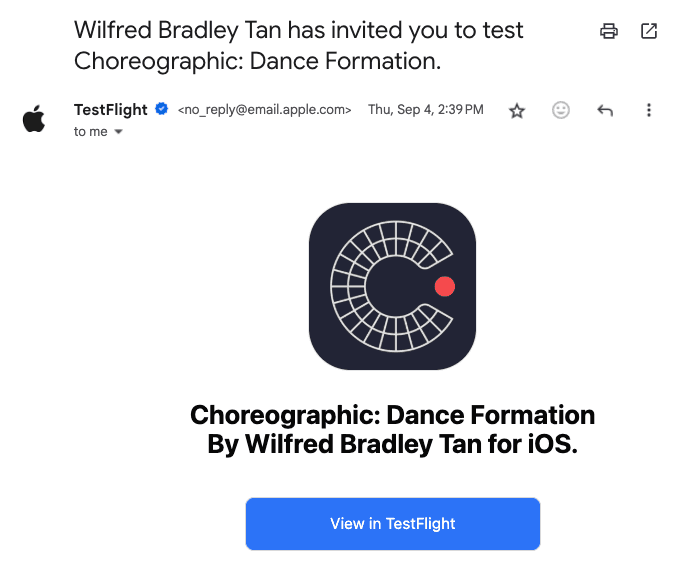
Step 2: Tap Accept → Install in TestFlight

Step 3: Launch Choreographic
Tip: Keep TestFlight installed for updates
2. Upgrade to PRO in the iOS test app (no real charges) ⭐
During Early Access Beta, Pro is tested in Apple’s Sandbox.
* You may see a price, but the purchase sheet will say “Sandbox” and
“For testing purposes only. You will not be charged for confirming this purchase.”
Step 1: Open the Pro screen
On the paywall, choose Monthly or Yearly and tap Subscribe.
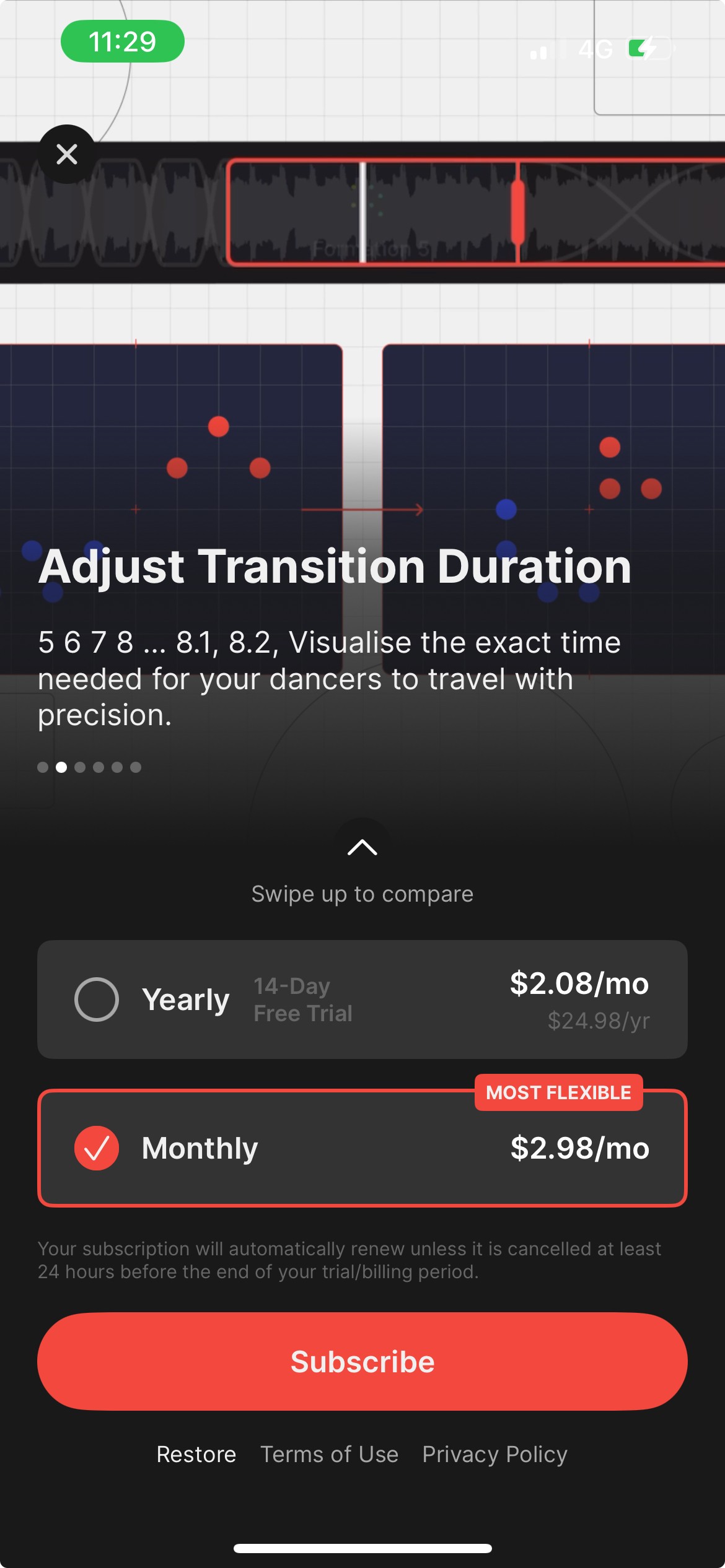
Step 2: Confirm it’s Sandbox before subscribing
* The iOS purchase sheet must show:
Header “Sandbox”
The line “For testing purposes only. You will not be charged for confirming this purchase."
Your tester account email
If you see a normal App Store sheet without “Sandbox,” tap X to cancel. Do not double-click the side button.
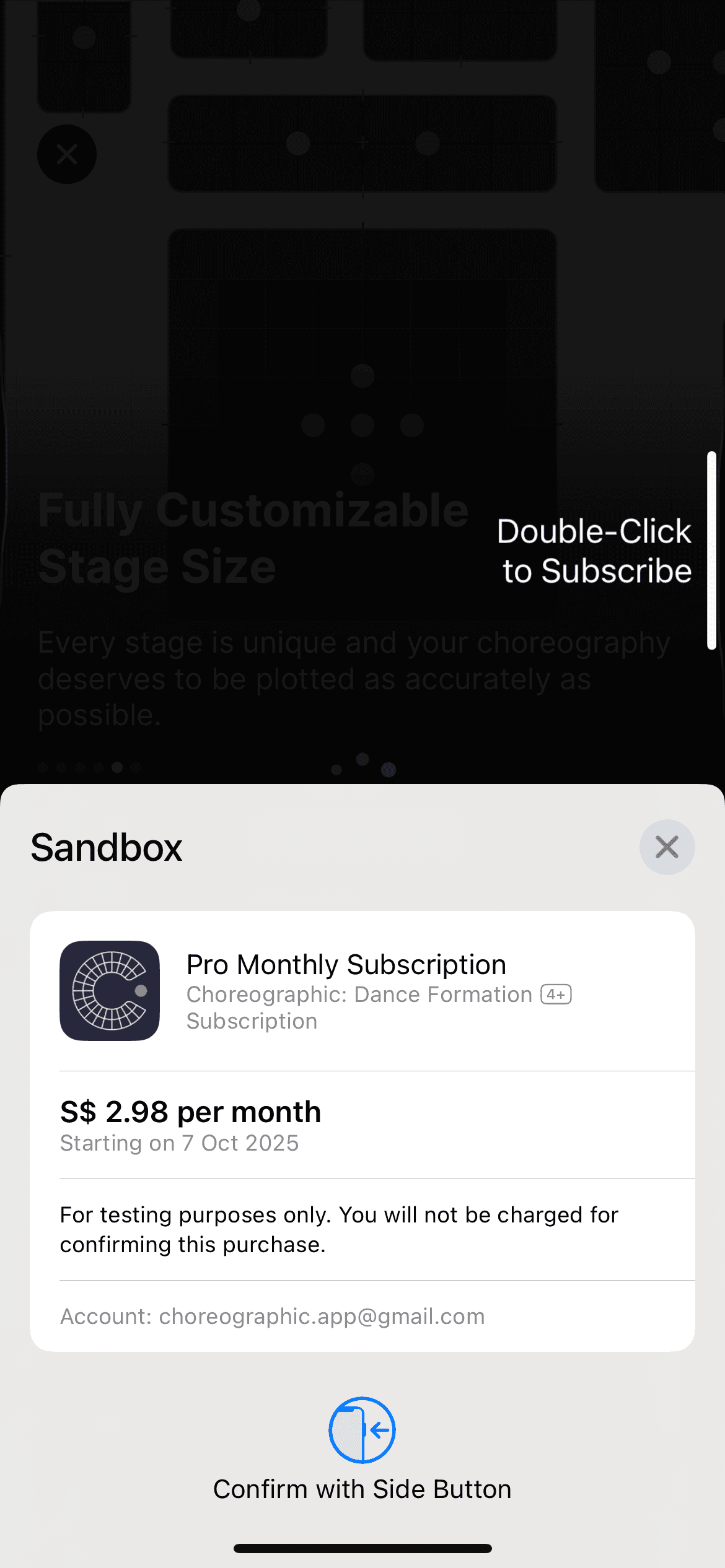
Step 3: Subscribe in Sandbox
If it says Sandbox, double-click the side button to confirm.
No real charges are made in Sandbox.
Step 4: Verify Pro features
Try Pro-only features
Offline edits
Collaboration & Share permissions
Cloud sync
Unlimited choreographies, crews, props
Adjusting transition duration
Syncing music to formations
Etc.
Troubleshooting
If you're not seeing “Sandbox”, ensure you installed the TestFlight build
Check that you’re signed in with the same Apple ID that got the invite
If it still does not work, reinstall from TestFlight and retry
Android testers
Android prerequisites
Use the Google account that was added to the Android beta tester list, and make sure Google Play is signed in with that same account before installing.
1. Install app via Google Play
Open the beta link on your Android device. In Google Play, look for the Join the beta banner and tap Join, then install or update the app when Google Play shows beta access. If you cannot see the Join the beta banner, confirm you are signed into Google Play with the invited Google account. If it still does not appear, reach out to us at help@choreographic.app.

2. Upgrade to PRO in the Android test app
During Early Access Beta, Android Pro is tested through Google Play Billing.
Test purchases avoid real charges only when the Google account is set up as a Google Play license tester.
Step 1: Open the Pro screen and choose the monthly or yearly option you want to test.
Step 2: Before subscribing, confirm the Google Play purchase sheet shows a test notice or test payment method.
Step 3: If you do not see test purchase UI, cancel the purchase and report it in the feedback form.
Step 4: Verify Pro features such as offline access, collaboration permissions, cloud sync, unlimited choreographies, crews, props, transition duration, and music sync.
Troubleshooting
If the beta does not appear, confirm Google Play is signed in with the same invited Google account and try again later.
If Install or Update is unavailable, open the Play link again on the Android device after confirming tester eligibility.
If test purchase options do not appear, confirm the Google account is configured as a Play license tester before trying again.
Use the same feedback form on this page for Android issues.
Submit Feedback
Please submit feedback through the form below for either platform. Include your platform, device model, app version, and screenshots when useful.
General troubleshooting
If the app crashes, note the time, platform, device model, and what you were doing, then submit the feedback form.
If beta access does not appear, use the platform-specific account checks above before retrying.
For blocked installs, missing Pro access, or sync issues, send screenshots through the feedback form when possible.